> ## Documentation Index
> Fetch the complete documentation index at: https://docs.runcascade.com/llms.txt
> Use this file to discover all available pages before exploring further.
# Rubrics & Evaluation
> Define what good looks like and automatically score every agent execution
Cascade Evals let you systematically score every agent execution. Instead of manually reviewing traces, you define what "good" looks like, and Cascade tells you when your agent drifts.
Once you've created rubrics, you can see how well your agents perform across every execution—pass rates, failure modes, and where quality slips. You get a clear picture of agent behavior over time.
## Evaluation scope
When you create a rubric, you choose its **evaluation scope**: trace-level, span-level, or session-level. The scope determines what data the rubric can access and what it evaluates.
Evaluates the entire agent execution from start to finish. Has access to all LLM calls, tool calls, and the full trajectory.
**Use for:** Overall quality, hallucination detection, efficiency
Evaluates individual steps—one LLM call or one tool call. Only has access to that specific span's data.
**Use for:** LLM response quality, tool correctness, individual step validation
Evaluates the full session trajectory across multiple traces/turns in one rubric run.
**Use for:** Multi-turn continuity, cross-trace consistency, overall journey quality
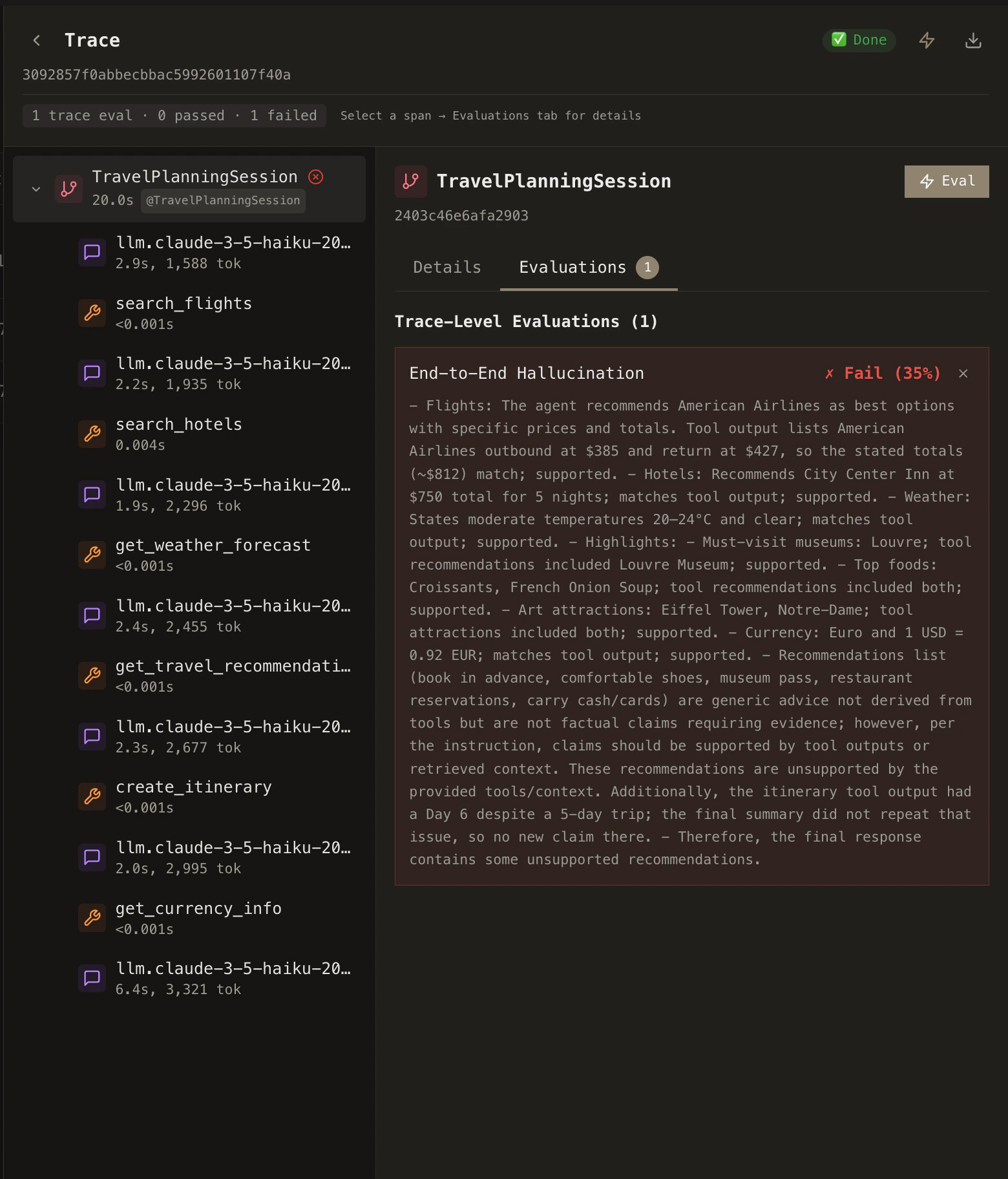
When you run a rubric, evaluation results appear in the trace view. The example below shows trace-level evaluation output—including pass/fail status and detailed reasoning for each rubric.
 ### Template variables
Inside your Evaluation Template—the prompt field you enter when creating a rubric—you use **double curly braces** `{{variable_name}}` as placeholders. Cascade replaces each placeholder with the actual value for the trace, span, or session being evaluated. The variables available depend on the rubric's scope.
Initial input to the agent / trace entry
Final output of the trace
Retrieval context (if available)
Full execution trajectory (all LLM & tool calls grouped by agent)
Total number of spans in the trace
All tool calls (name, input, output per call)
All LLM calls (model, prompt, completion per call)
Total trace duration
Whether the trace has errors
The input to the span (LLM prompt or tool input)
The output of the span (LLM completion or tool output)
**Tool span variables:**
Name of the tool
Input passed to the tool
Output returned by the tool
**LLM span variables:**
The LLM prompt
The LLM completion / response
The LLM model used
Combined trajectory across all traces in the session
Number of traces included in the session trajectory
Total spans across the session
All tool calls across traces
All LLM calls across traces
Session duration
Whether any trace in session had errors
**Compatibility variables:**
First known input in the session
Last known output in the session
Retrieval context fallback
## Pre-built rubrics
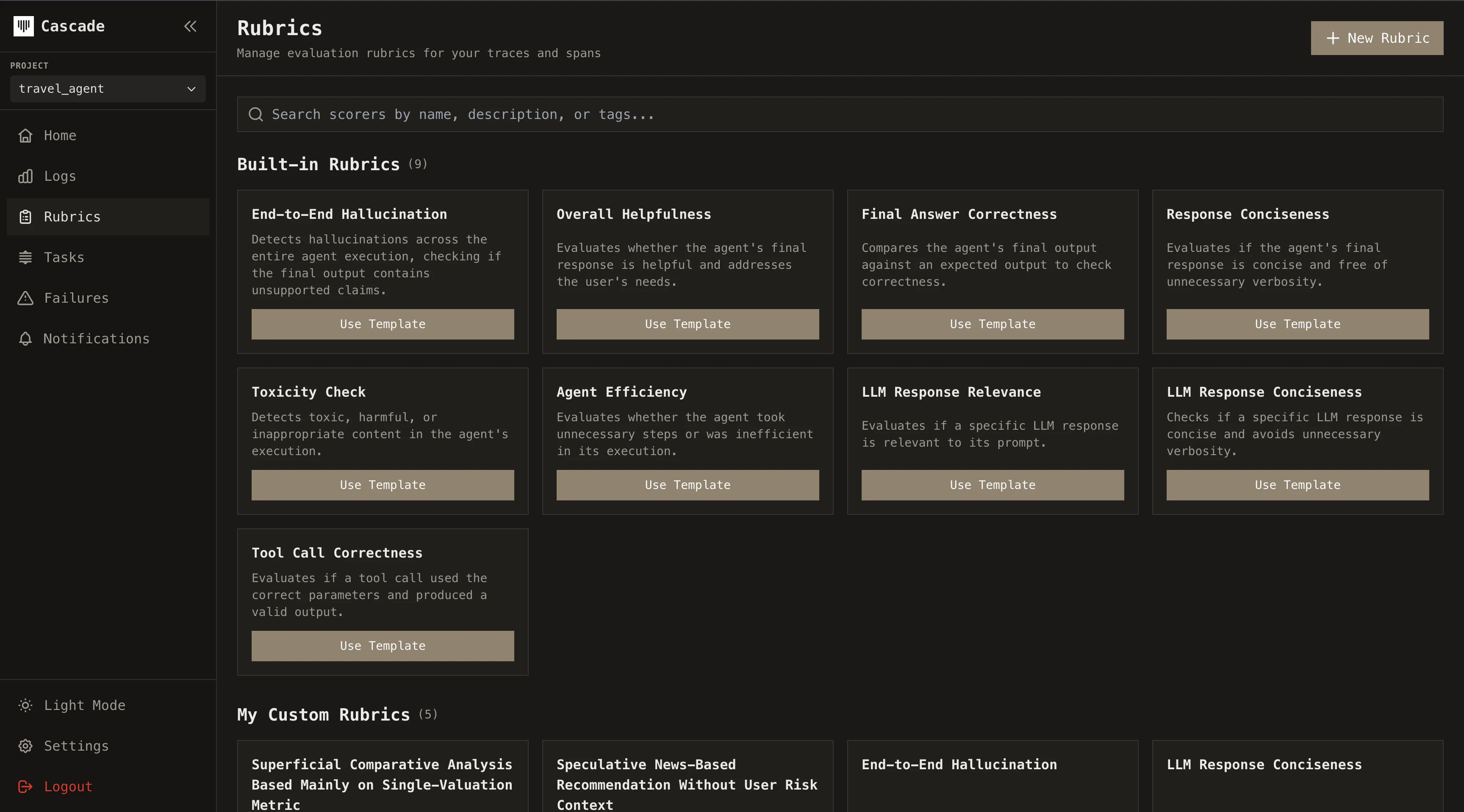
Cascade ships with a library of ready-to-use rubrics covering general and use-case specific failure modes: helpfulness, hallucination, tool usage efficiency, and more.
Go to **Rubrics** in the sidebar and browse the built-in templates. Each rubric comes with a pre-configured rubric prompt, threshold, and output type.
Select the rubrics relevant to your agent and activate them.
Every pre-built rubric can be customized after activation. Adjust the prompt template, change the threshold, switch the model, or modify the scoring criteria to match your domain.
### Template variables
Inside your Evaluation Template—the prompt field you enter when creating a rubric—you use **double curly braces** `{{variable_name}}` as placeholders. Cascade replaces each placeholder with the actual value for the trace, span, or session being evaluated. The variables available depend on the rubric's scope.
Initial input to the agent / trace entry
Final output of the trace
Retrieval context (if available)
Full execution trajectory (all LLM & tool calls grouped by agent)
Total number of spans in the trace
All tool calls (name, input, output per call)
All LLM calls (model, prompt, completion per call)
Total trace duration
Whether the trace has errors
The input to the span (LLM prompt or tool input)
The output of the span (LLM completion or tool output)
**Tool span variables:**
Name of the tool
Input passed to the tool
Output returned by the tool
**LLM span variables:**
The LLM prompt
The LLM completion / response
The LLM model used
Combined trajectory across all traces in the session
Number of traces included in the session trajectory
Total spans across the session
All tool calls across traces
All LLM calls across traces
Session duration
Whether any trace in session had errors
**Compatibility variables:**
First known input in the session
Last known output in the session
Retrieval context fallback
## Pre-built rubrics
Cascade ships with a library of ready-to-use rubrics covering general and use-case specific failure modes: helpfulness, hallucination, tool usage efficiency, and more.
Go to **Rubrics** in the sidebar and browse the built-in templates. Each rubric comes with a pre-configured rubric prompt, threshold, and output type.
Select the rubrics relevant to your agent and activate them.
Every pre-built rubric can be customized after activation. Adjust the prompt template, change the threshold, switch the model, or modify the scoring criteria to match your domain.
 ## Custom rubrics
When pre-built rubrics don't cover your use case, create your own.
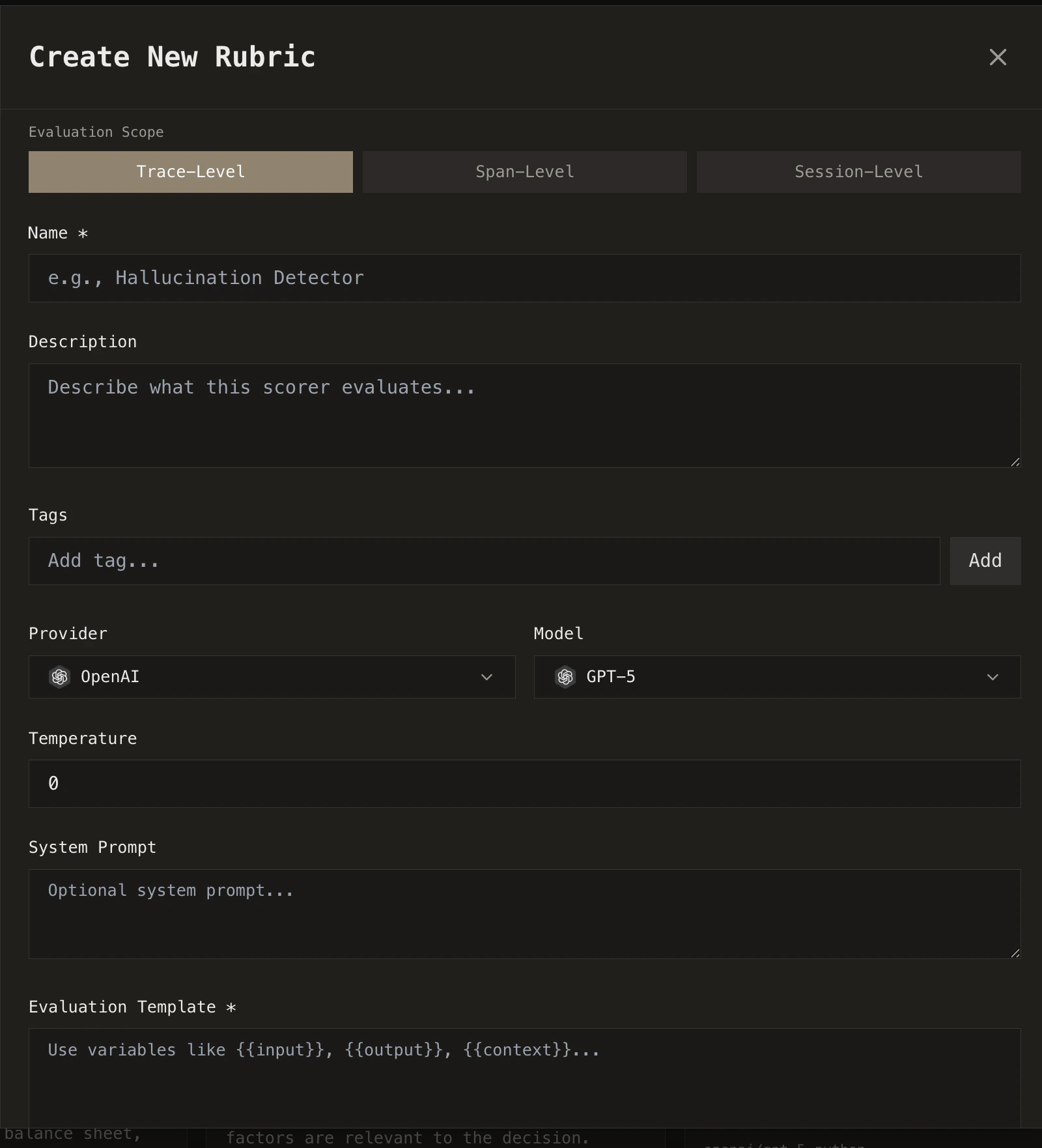
From the **Rubrics** page, click **Create Rubric** and choose between:
Write a natural-language prompt that our model uses to evaluate your agent's behavior. Supports binary (pass/fail), scale (0-1), or classification outputs.
Write a Python function that programmatically checks agent outputs against your own logic.
Coming soon
Define what to evaluate (the full trace, a specific agent, or individual spans), set your pass/fail threshold, and the rubric is ready to run.
## Custom rubrics
When pre-built rubrics don't cover your use case, create your own.
From the **Rubrics** page, click **Create Rubric** and choose between:
Write a natural-language prompt that our model uses to evaluate your agent's behavior. Supports binary (pass/fail), scale (0-1), or classification outputs.
Write a Python function that programmatically checks agent outputs against your own logic.
Coming soon
Define what to evaluate (the full trace, a specific agent, or individual spans), set your pass/fail threshold, and the rubric is ready to run.
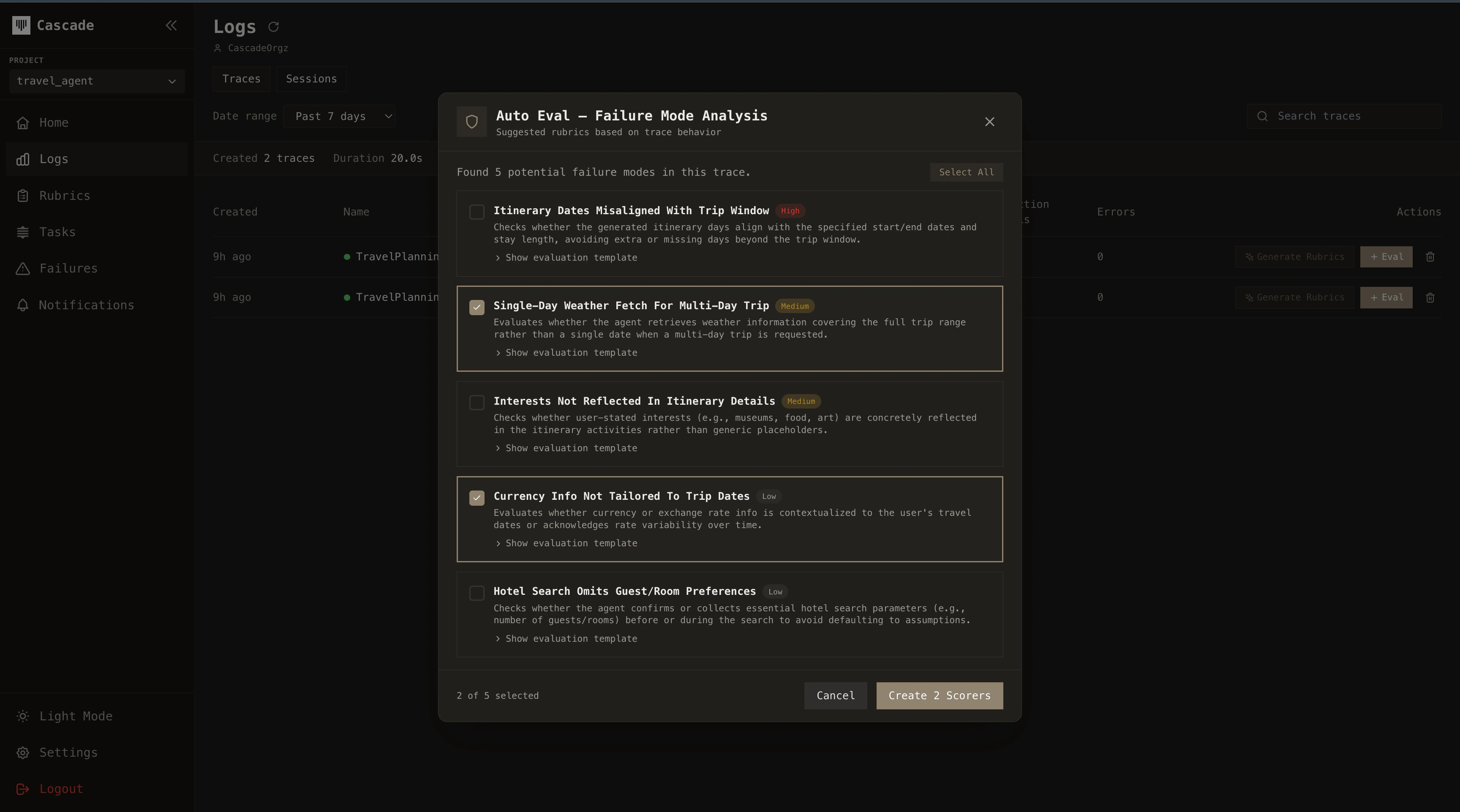
 ## Auto evals
Auto Evals analyze your trace data to surface what matters before you even define a rubric. Access them by pressing the **Generate Rubric** button while viewing a trace.
### How it works
Cascade collects trace data across your agent's executions (tool call patterns, LLM outputs, decision paths, error rates) and identifies recurring behavioral patterns.
From these patterns, it detects which parts of the execution are most critical for your agent to succeed and where potential failures are likely to occur.
The result is a curated set of suggested rubrics tailored to your agent's actual behavior. You review the suggestions and select which ones to activate. No manual prompt engineering required.
## Auto evals
Auto Evals analyze your trace data to surface what matters before you even define a rubric. Access them by pressing the **Generate Rubric** button while viewing a trace.
### How it works
Cascade collects trace data across your agent's executions (tool call patterns, LLM outputs, decision paths, error rates) and identifies recurring behavioral patterns.
From these patterns, it detects which parts of the execution are most critical for your agent to succeed and where potential failures are likely to occur.
The result is a curated set of suggested rubrics tailored to your agent's actual behavior. You review the suggestions and select which ones to activate. No manual prompt engineering required.
 ## Rubric generation from human comments
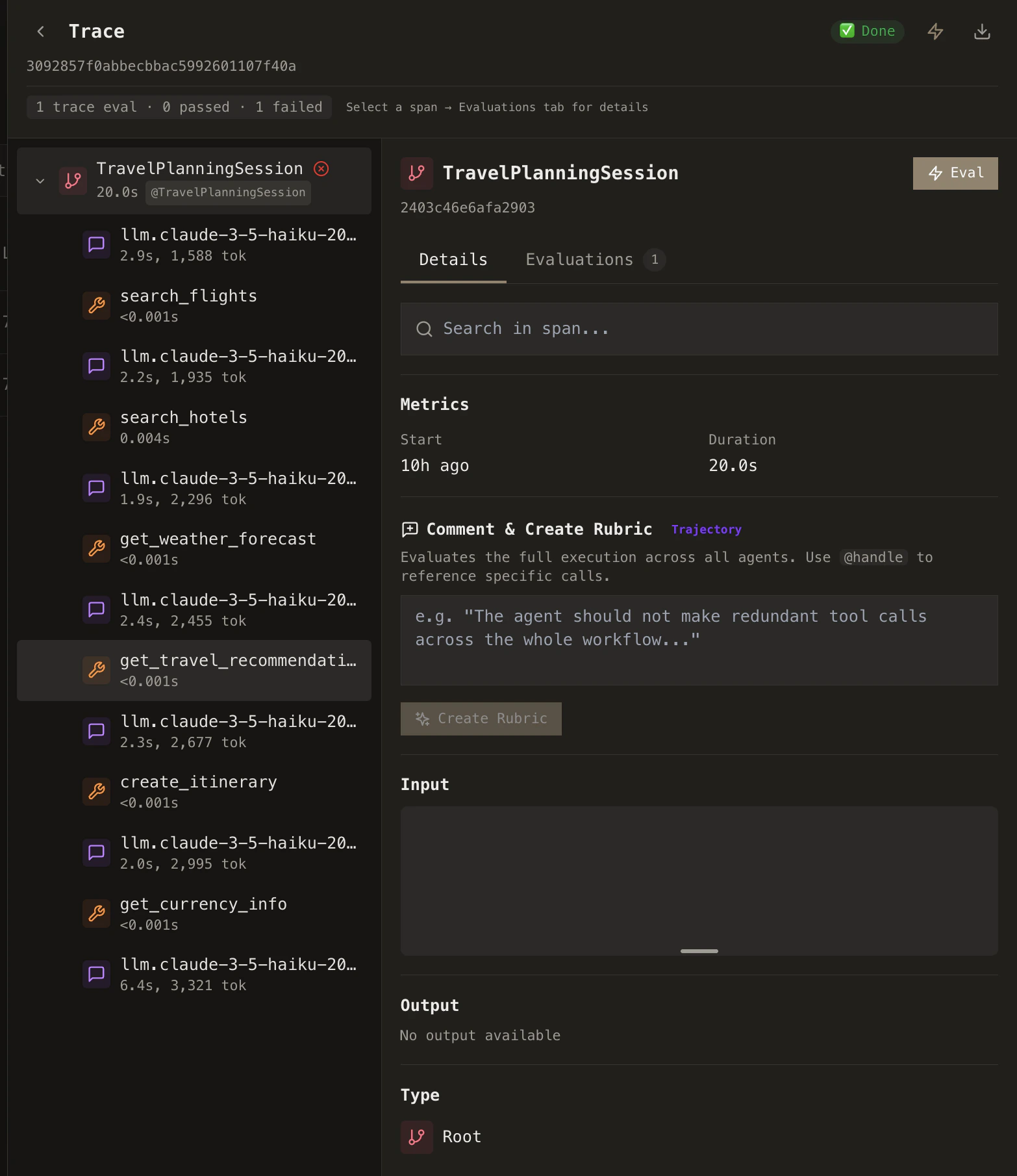
The fastest way to create a rubric is to describe what went wrong.
While reviewing a trace, you can leave comments directly on any span: a tool call that returned bad data, an LLM response that missed the point, or an agent that took an unnecessary detour. Use `@handles` to reference specific spans in your comment.
Cascade takes your comment, analyzes the trace context, and automatically generates a rubric that captures the issue. That rubric then runs against future traces, catching the same class of problem before it reaches users.
**Example:** You notice a trace where the agent calls the weather API three times in a row. You comment: *"The agent should not make redundant tool calls."* Cascade generates a trajectory rubric that flags any trace exhibiting repeated tool calls, and applies it going forward.
## Rubric generation from human comments
The fastest way to create a rubric is to describe what went wrong.
While reviewing a trace, you can leave comments directly on any span: a tool call that returned bad data, an LLM response that missed the point, or an agent that took an unnecessary detour. Use `@handles` to reference specific spans in your comment.
Cascade takes your comment, analyzes the trace context, and automatically generates a rubric that captures the issue. That rubric then runs against future traces, catching the same class of problem before it reaches users.
**Example:** You notice a trace where the agent calls the weather API three times in a row. You comment: *"The agent should not make redundant tool calls."* Cascade generates a trajectory rubric that flags any trace exhibiting repeated tool calls, and applies it going forward.